
Managing Nextcloud users, teams and shared folders
With a Nextcloud package from WebOké, you create users yourself in My WebOké. You don't need to be in Nextcloud itself to do this. How many users you can create depends on your package and the configurable options. At the bottom, you'll read how to put users in teams and share folders with an entire team.
Creating a user
- Log in to My WebOké, go to My Products and click Manage next to your Nextcloud package.
- At the top of the package page you'll see three counters: Nextcloud users, Office Suite licences and Storage, each shown as used of limit. Scroll to User Management. This lists all users with their account name, display name, email address, Office Suite, status and last login.
- Click Add user and fill in the fields (see below).
- Click Create user. The user appears in the list right away and can log in to your Nextcloud immediately with the username and password. The Open Nextcloud button on the package page takes you to your Nextcloud.
- Username: the user logs in with this. Lowercase letters, numbers, dot or hyphen, 2 to 64 characters. You can't change this name later.
- Display name: the name others see when sharing files and in Nextcloud Talk. Can be changed later.
- Email address: the user receives Nextcloud notifications at this address, such as password resets and shared folders. Can be changed later.
- Password: at least 10 characters with at least one number and one special character. Use Generate to create a strong password. Share it securely with the user: no email containing the password is sent.
- Assign Office Suite licence: tick this if this user needs to be able to edit documents with the Office Suite (Euro-Office). You need a free licence for this.
Managing users
Through the action menu next to a user, you can change the password, edit the display name and email address, disable or re-enable the user, and delete the user. Use the switch in the Office Suite column to turn a licence on or off. Changes in User Management are saved immediately.
Need more users or licences?
If you've reached your limit, you can increase the number on the same page under Configurable Options. You pay for an upgrade pro rata for the rest of your term, and it takes effect after payment. A downgrade takes effect immediately. Want a different package? Click Change hosting package.
Teams and shared folders
Do you often work with the same people, such as a department, a board or your family? Then put them in a team. In Nextcloud, a group you create yourself is called a team.
- In Nextcloud, open the Teams app via the menu with the nine dots at the top left.
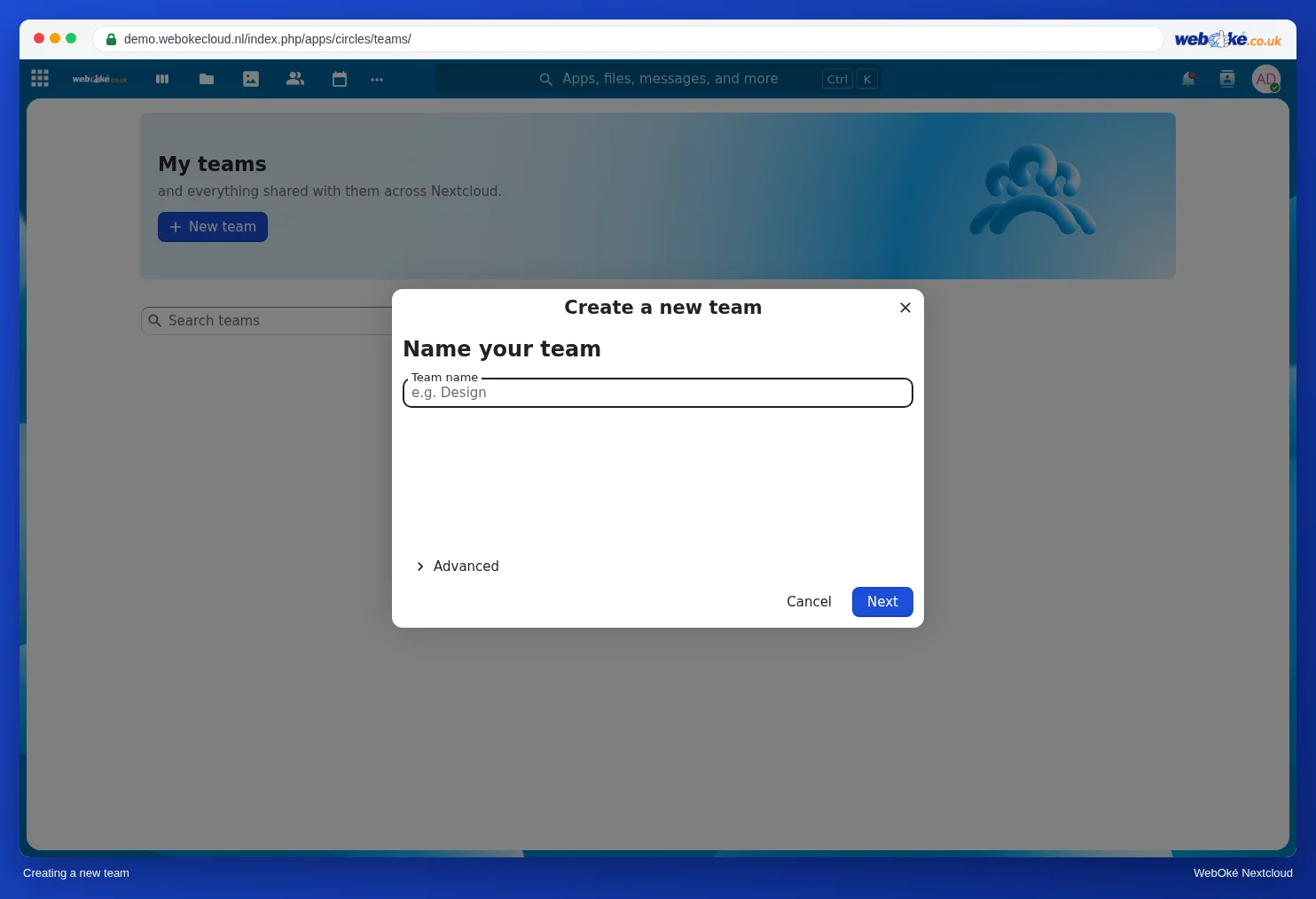
- Click New team, enter a Team name and click Next.
- Add the members: type their name and select them from the list.
- Want to share a folder with the whole team? Open the Sharing tab for the folder, type the team's name under Internal shares and choose the permissions.
Anyone who joins the team later automatically gets access to the shared folder. Anyone you remove from the team loses that access.
A shared folder does still belong to the person who created it, and counts towards their storage. Want a folder that belongs to the team itself and stays around when someone leaves? Then use a team folder. You create it yourself in the Teams app:
- When you create a new team, the team immediately gets a team folder with the same name. That option, Create a team folder, is under Advanced and is ticked by default.
- Does an existing team not have a team folder yet? Open the team in the Teams app and, as the team owner, click Create team folder.
Team folders are available in Personal, Family and Max, not in Nextcloud Free. A team folder has no size limit of its own: the storage doesn't count towards any one person, but it does count towards your package's total storage.
More information in the Nextcloud manual: Creating teams and sharing a folder with your whole team, Team folders: a shared folder that belongs to the team and Permissions: who manages what in your Nextcloud?
Detailed explanation with screenshots: Creating, editing, disabling and deleting users in the Nextcloud manual.
See also: Team folder not visible in the Nextcloud app on your computer