
Chapter 16 · 16.2
Backup and Restore: creating your own backup in DirectAdmin
With Backup and Restore you create a backup of (part of) your package yourself. The result is one file in the backups folder of your package. You can restore that file later (see Restoring a DirectAdmin backup) or download it to keep yourself.
Tip: Just want an extra restore point, for example right before a major change? That's quicker with the Create Backup button in WebOké Backups (see Can I also do this in My WebOké? WebOké Backups). That backup doesn't count towards your storage.
Creating a backup
- In the menu, under Advanced Features, click Backup and Restore.
- You're on the Create Backup tab (1).
- Under Domains (2), choose whether to include All Domains or only Selected Domains.
- Under Options (3), tick what should be included in the backup. See the list below.
- Click BACKUP at the bottom.
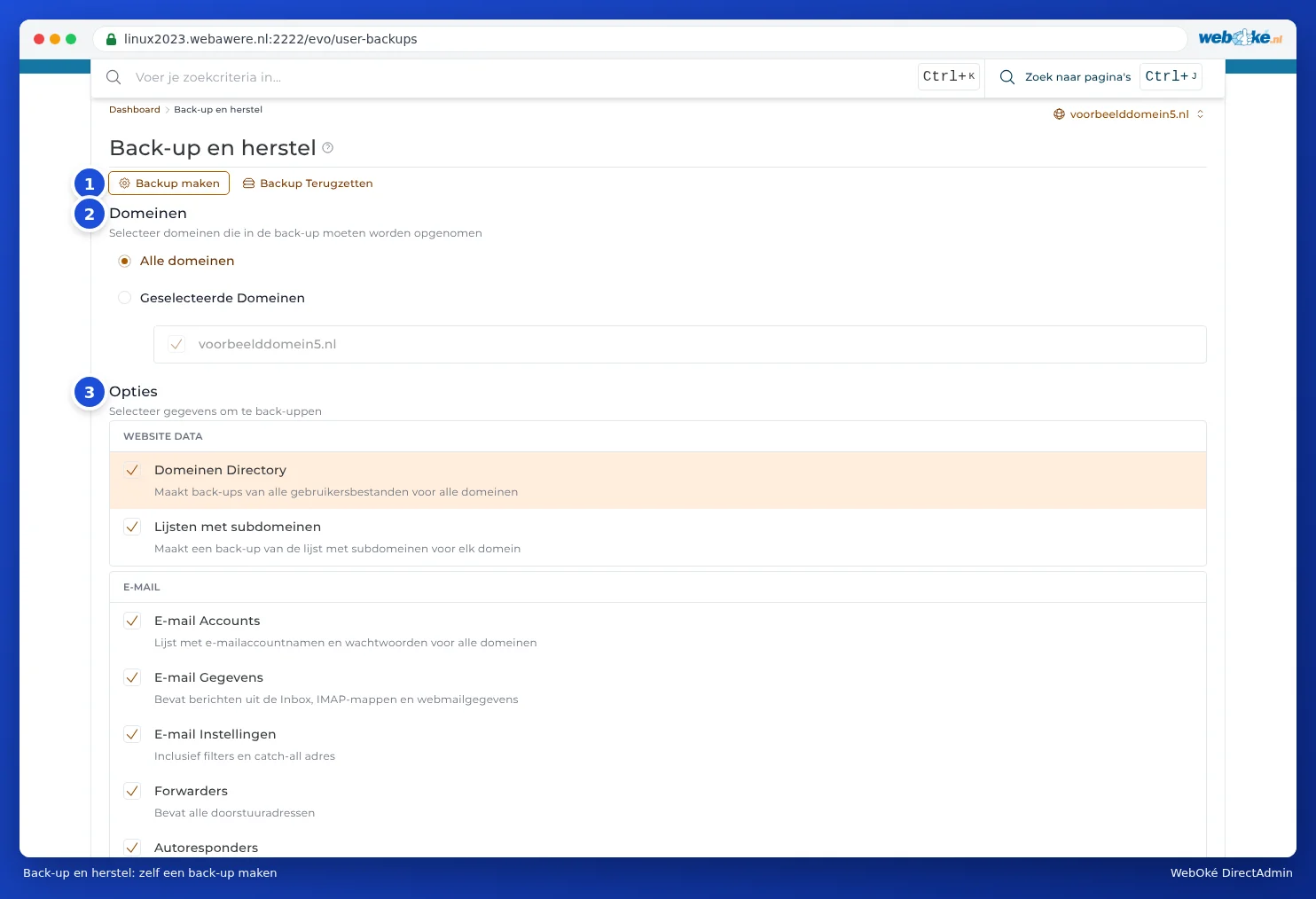
Which parts can you choose?
| Group | Part | What's in it? |
|---|---|---|
| WEBSITE DATA | Domains Directory | All files of your websites. Often the largest part. |
| Lists of subdomains | Which subdomains exist. | |
| E-mail Accounts | The names and passwords of your mailboxes. | |
| E-mail Data | The mail itself: inbox, folders and webmail data. Can be large. | |
| E-mail Settings | Filters and the catch-all address. | |
| Forwarders | Your forwarding addresses. | |
| Autoresponders | Your automatic replies. | |
| Vacation Messages | Your out-of-office messages with their periods. | |
| Mailing Lists | Your mailing lists. | |
| FTP | FTP Accounts | Your extra FTP accounts and their settings. |
| DATABASE | Database Settings | The database users and their settings. |
| Database Data | The contents of your databases. | |
| TRASH | Deleted Trash Data | What's in the trash of File Manager. |

What happens next?
The backup is added to the queue. In the bottom right, you'll see the message Backup creation has been added to the queue.

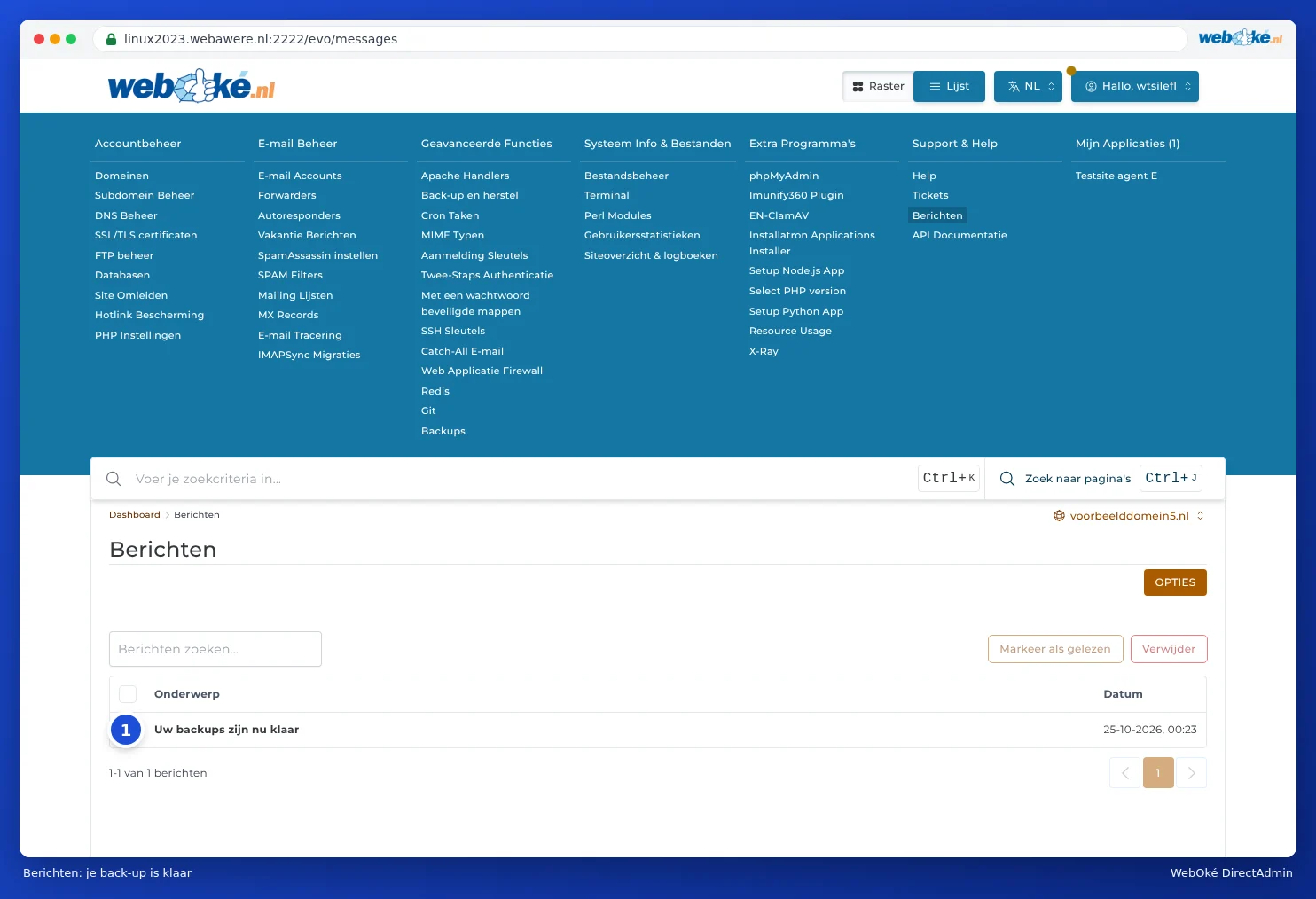
You don't have to wait: a large backup can take a while. Once it's ready, you'll get the message Your backups are now ready in Message Area. You'll find Message Area in the menu under Support & Help (see Messages in DirectAdmin).
The backup file is then in the backups folder of your package. You'll see it in File Manager (see Opening File Manager: the directories in your package). The name starts with backup-, followed by the date and a sequence number, for example backup-Oct-25-2026-1.tar.gz.
Downloading the backup
Want to keep the backup yourself, outside the server? Then download it:
- Open File Manager and go to the backups folder.
- Click the backup file and choose Download (see Uploading and downloading files).
- Delete the file from the server afterwards if you no longer need it there (see Freeing up space: cleaning up old backups).
Good to know
- Counts towards your storage. A backup of your entire package can be almost as large as everything in your package. If there's not enough room, the backup will fail. In that case, choose fewer parts, or use WebOké Backups.
- Only what you tick. If you don't tick E-mail Data, your mailboxes will be in the backup, but the mail itself won't be.
- No automatic schedule. You always create a backup with Backup and Restore manually. We already create automatic backups every night with WebOké Backups.