
Chapter 13 · 13.5
Updates and automatic updates
Software such as WordPress regularly receives updates. These fix bugs and, more importantly, security vulnerabilities. A website that isn't kept up to date will sooner or later be hacked. With Installatron, you can update your website with a single click, or have it done automatically.
Updating manually
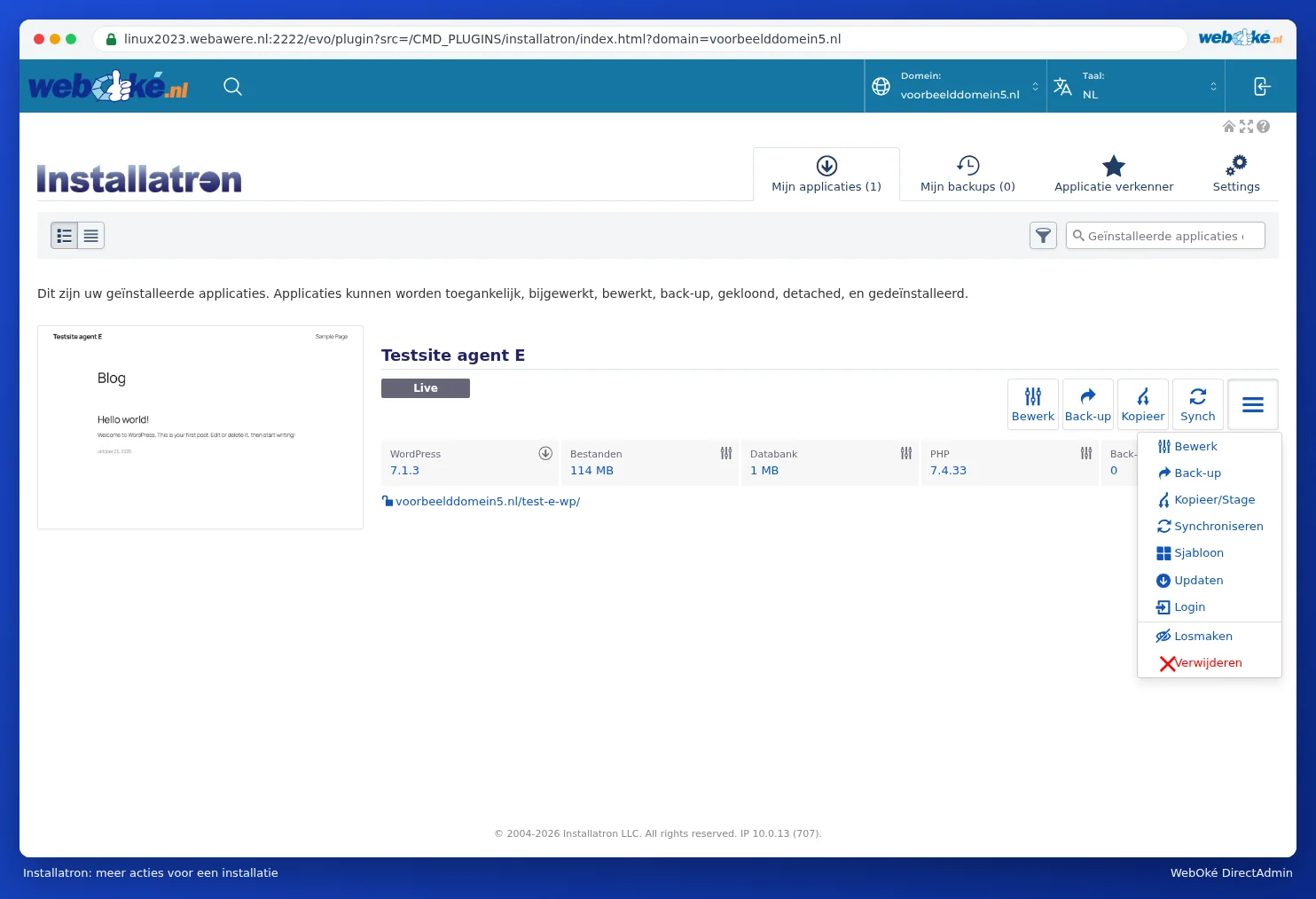
- Open Installatron and go to My applications. For any installation with a new version available, you'll see this next to the version number.
- Click the button with the three lines ≡ next to the installation and choose Updaten.
- Let Installatron make a backup first (this is on by default) and start the update.
Setting up automatic updates
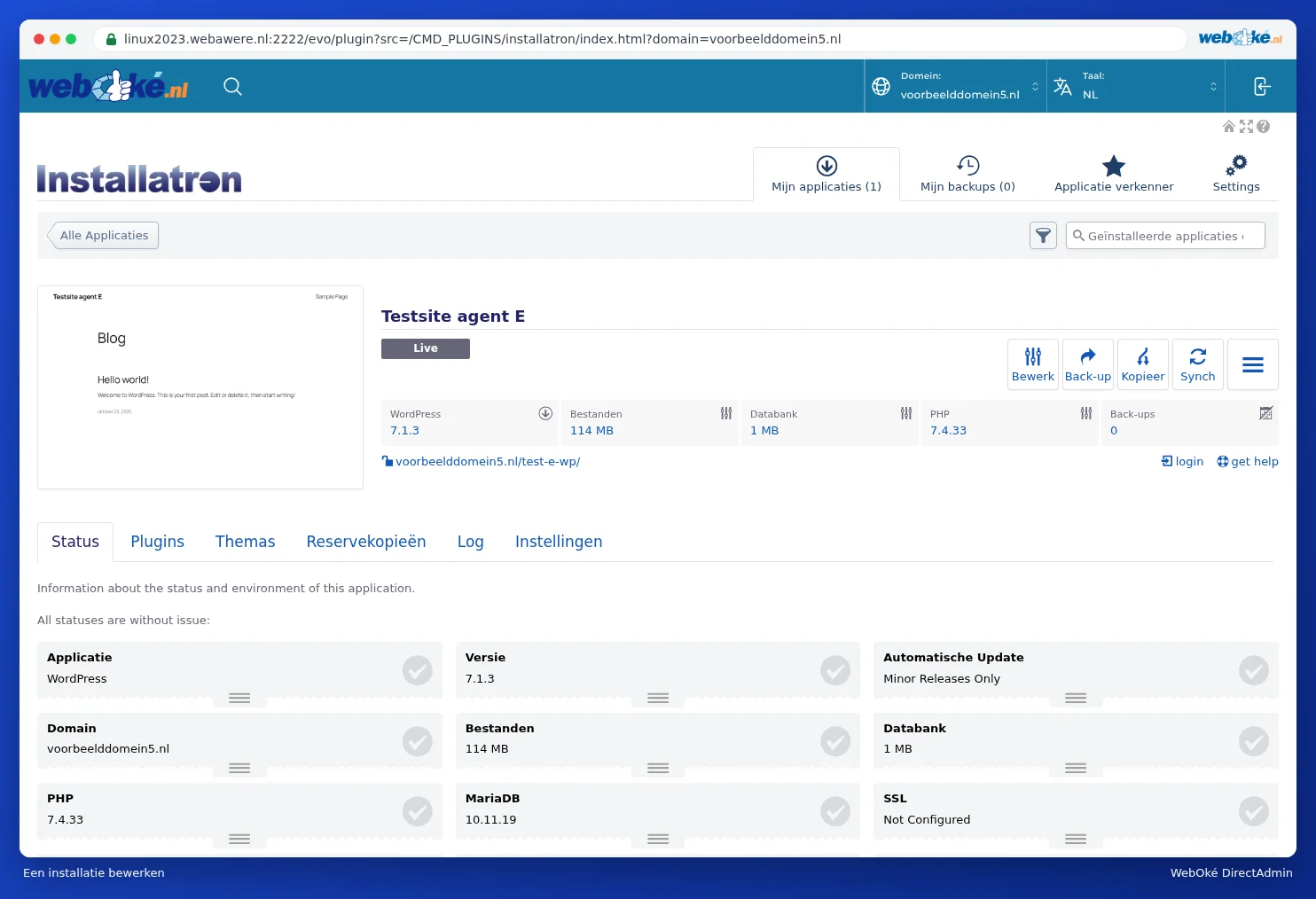
- In My applications, click Edit next to your installation. You'll see the tabs Status, Plugins, Themes, Backups, Log and Settings.
- Click Settings and then Auto-Update on the left.
- Under Automatic Update, choose one of the three options:
- Make a backup and update to all new versions: including major new versions.
- Update to new minor versions and security versions: only minor updates and security updates. This is the default and a good choice for most sites.
- Not automatically updated: you update everything yourself.
- Also choose whether plugins and themes are updated automatically (WordPress Plugin Automatic Update and WordPress Theme Automatic Update). You can also choose per plugin or theme (Let me choose individually).
- Leave Automatic Update Rollback on: this way Installatron makes a backup before the update and restores it if the update fails.
- Click Save All at the bottom.

On the Status tab, you can see at a glance how your installation is doing: the version, which automatic update setting is active, whether SSL is set up, how many plugins and themes there are, when the last update and backup took place, and whether anything has gone wrong.
Automatic updates run at night, between midnight and 6am. After each update you'll receive an email with the result (if you've turned on notifications). Installatron keeps the backup from before the update for one day, after which it's automatically deleted to save space.
Can I also do this in My WebOké?
Yes. In the Website Manager, you can immediately see if there's an update available. Click Update to update; we automatically make a backup first. Under Admin, you can set whether your website updates itself under Automatic updates, and under Plugins & themes you can update plugins and themes individually or all at once (see Can I also do this in My WebOké? The Website Manager).
Please note: Do you update WordPress via WordPress itself (Dashboard > Updates)? That's perfectly fine. Installatron will automatically detect the new version at the next check.
Tip: After a major update, check that your site is still working properly. If something stops working after an update, also check whether your PHP version still matches your plugins (see Fouten na een PHP-upgrade en het foutlog vinden).