
Chapter 2 · 2.9
After your order: tracking delivery and the welcome email
As soon as we've received your payment, we'll automatically deliver your order. Everything is usually ready within a few minutes.
Tracking the delivery
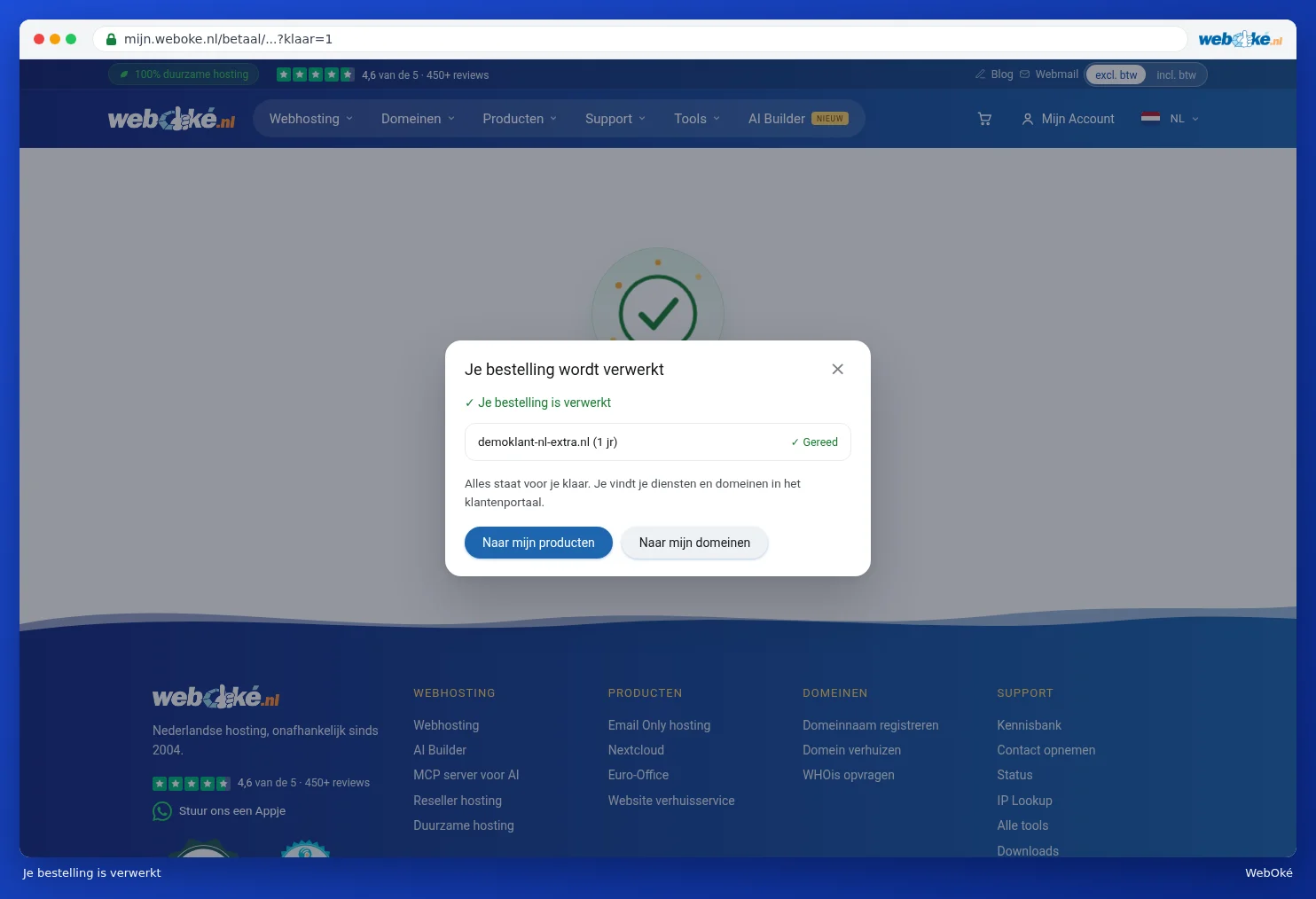
After paying, the Your order is being processed window opens. You'll first see Checking payment, followed by Payment received. Below that, you'll see each item in your order with its status:
| Status | Meaning |
|---|---|
| Queued | We'll start on this item shortly. |
| Running | We're setting up this item now. |
| Done | This item is ready to use. |
| Transfer requested | The transfer of your domain has started. |
| Transfer starts later | You've chosen to transfer later, see Transferring a domain to WebOké (transfer code or transfer later). |
| Failed | Something went wrong. This item will be retried automatically; no action is needed. |

Once everything is ready, you'll see Your order has been processed. Click Go to my products or Go to my domains to get started straight away. You can also close the window: delivery will simply continue.
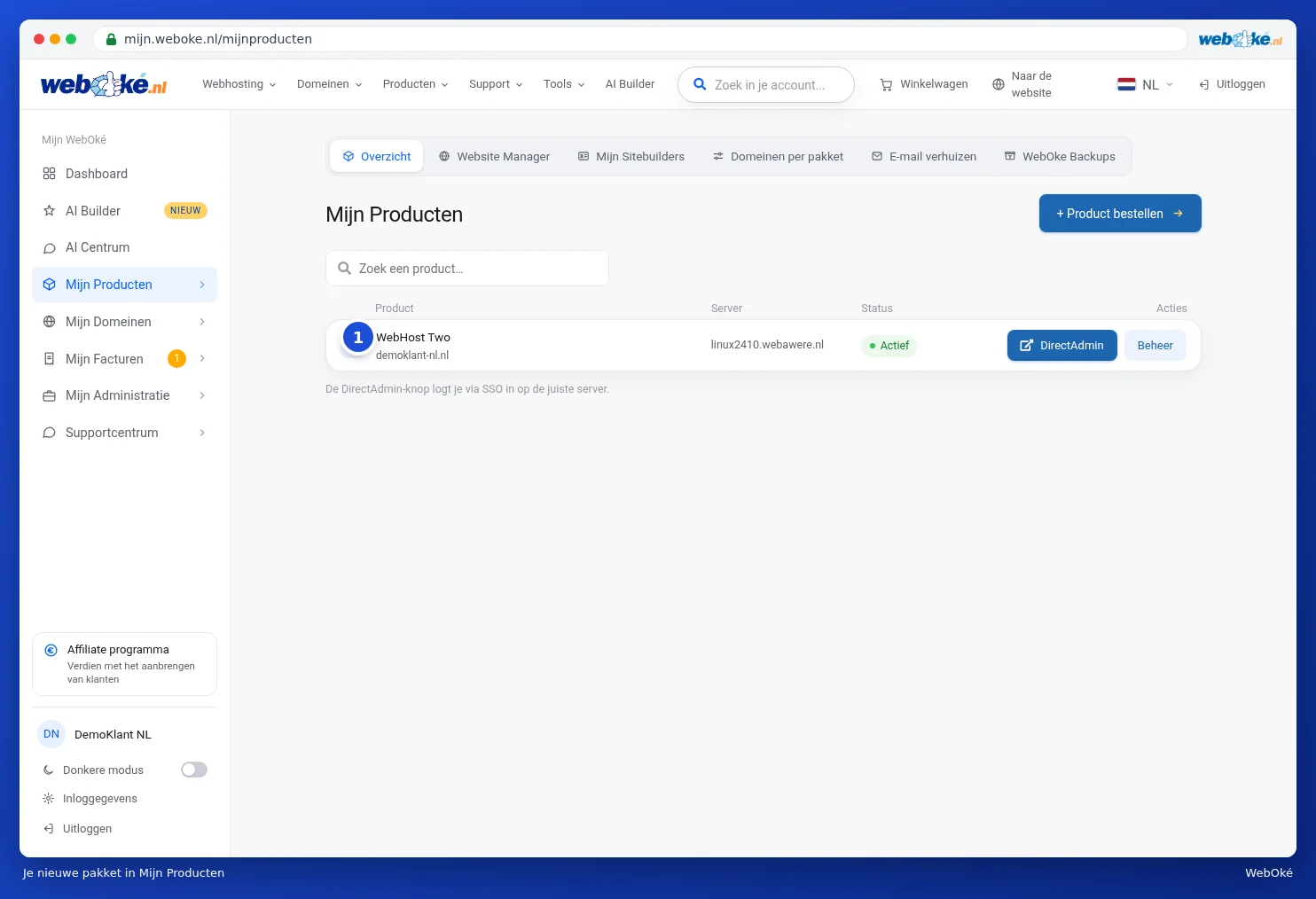
Your new package then appears in My WebOké under My Products (1), with the status Active. See Your product overview.
The emails you'll receive
After your first order, you'll receive a few emails. They're sent to the email address you entered when ordering.
| What's in it? | |
|---|---|
| Welcome to WebOké: set your password | Your account for My WebOké has been created. Use the button in the email to set your password. The button is valid for 14 days and works once. |
| Order confirmation | Your order number and what you've ordered. |
| Invoice ready for you | The invoice for your order. |
| Payment confirmation | Confirmation that we've received your payment and the invoice has been marked as paid. |
| New hosting package information | The welcome email for your hosting package, with everything you need to get started. |
The order confirmation has the heading We've received your order. It shows your order number and what you've ordered. Use the View your invoice button to open the invoice.

Once we've received your payment, you'll get the email Payment received, everything paid. It shows the invoice number, the date, the payment method and the amount. You'll then find the invoice with proof of payment under My Invoices, see Viewing and downloading your invoices.

Please note: set your password as soon as possible. If the button in the welcome email has expired, request a new link via Forgot password on the login page. See Setting, changing or forgetting your password.
The welcome email for your hosting package
Keep this email somewhere safe. It contains:
- your package details: the package, the domain, the amount and when the next payment is due;
- how to access DirectAdmin. The easiest way is via My WebOké with the DirectAdmin button, without a password. You set your own DirectAdmin and FTP password under your package in My WebOké. See Go to DirectAdmin;
- the nameservers to set if your domain is with another provider;
- the server details for uploading your website with FTP;
- the settings for setting up your email in Outlook, Apple Mail or another email program. See also Email with WebOké: mailboxes, webmail and your email program;
- a link to the Website Manager, which lets you install WordPress, for example, in just a few clicks. See Website Manager: installing WordPress and other software.
Have you ordered or transferred a domain? It may take a few hours before it works everywhere on the internet.
Reading your emails again
Lost an email? You can read back every email we send you in My WebOké under My Administration and then Received emails. See Reading back received emails.
