
Chapter 5 · 5.7
Restoring DNS and creating a DNS backup
A DNS change is quick to make, but a mistake can make your website or email unreachable. So create a backup before you change anything major. A backup is a snapshot of all your DNS records, which you can go back to later.
Creating a backup
- Go to My Domains, the DNS tab, and choose your domain.
- Below the email settings, click the Backup/Restore tab (1).
- If you like, type a Description (2), so you'll know later why you made the backup. For example: before switching to Microsoft 365.
- Click Create backup (3).

The backup appears in the list with the date, the number of records, and your description. Use Change (4) to update the description. Use View (5) to see which records it contains.

Tip: the window for a new or changed record also has a Create a backup now button. This lets you create a backup right before your change with a single click.
Restoring a backup
- In the list, click Revert (6) next to the backup.
- You'll be asked whether you want to restore the backup. Your current DNS records will then be completely replaced by the records from the backup.
- Click OK to continue. Restoring takes a moment, as all records are set again. Afterwards, you'll see the restored records in the list.

Resetting DNS to the default
Use the Reset DNS button at the top of the DNS tab to reset all records for the domain back to WebOké's default.
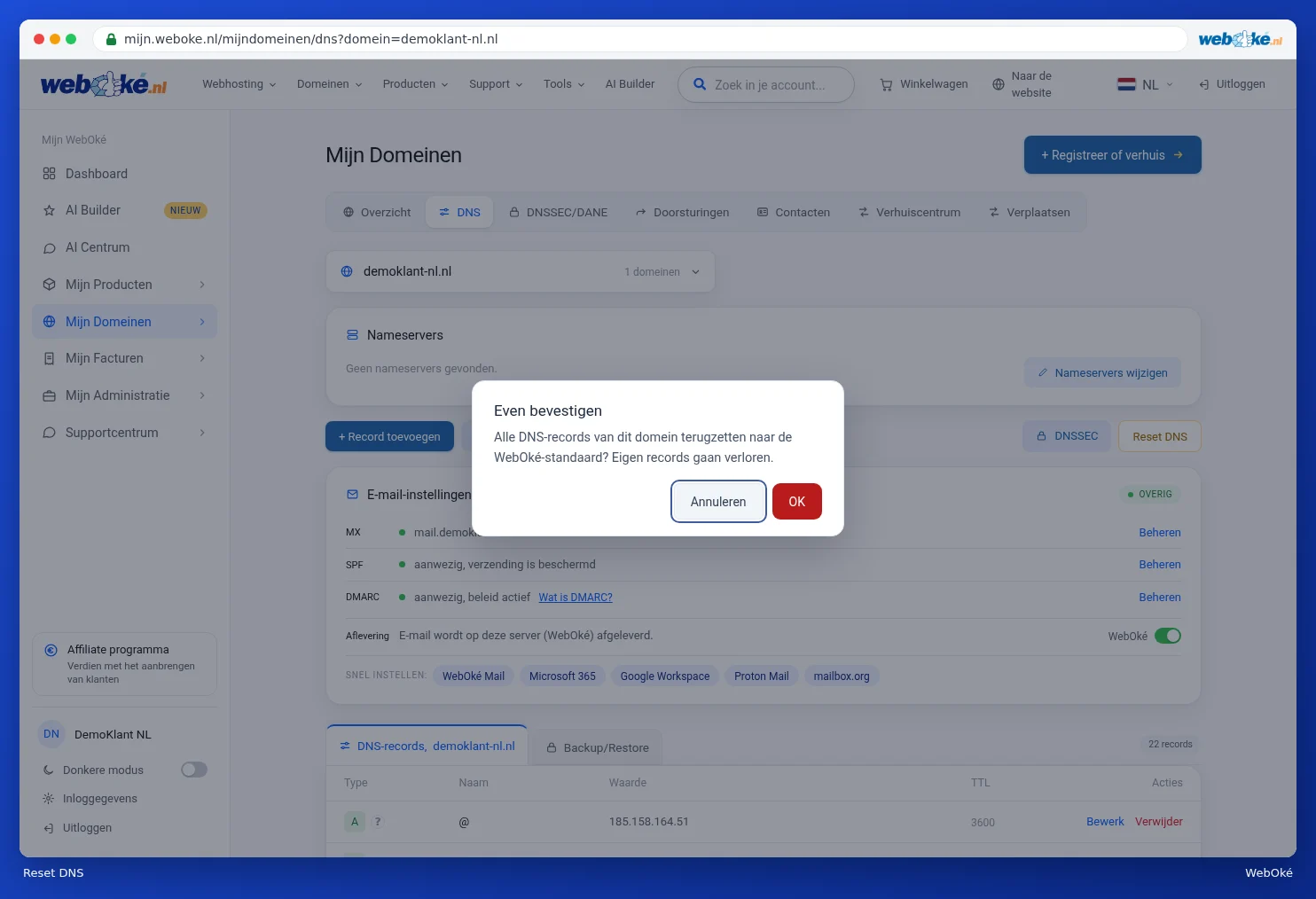
Please note: a reset removes all your own records, such as records for an external email provider or a verification. So always create a backup first. Not sure? Then click Cancel.