
Chapter 16 · 16.19
A Deck board with deadlines in your calendar
The question: we're planning our project in Deck, but I'd also like to see the deadlines in my calendar and on my phone. Is that possible?
Yes. Deck can show any board as its own calendar and task list. Cards with a due date then appear in the Calendar app, in the Tasks app, and via your calendar link also on your phone.
Step 1: give the cards a due date
Open a card and fill in Set a due date. Only cards with a due date show up in your calendar. See Deck: boards, lists and cards, and using them together.
Step 2: add the boards to your calendar
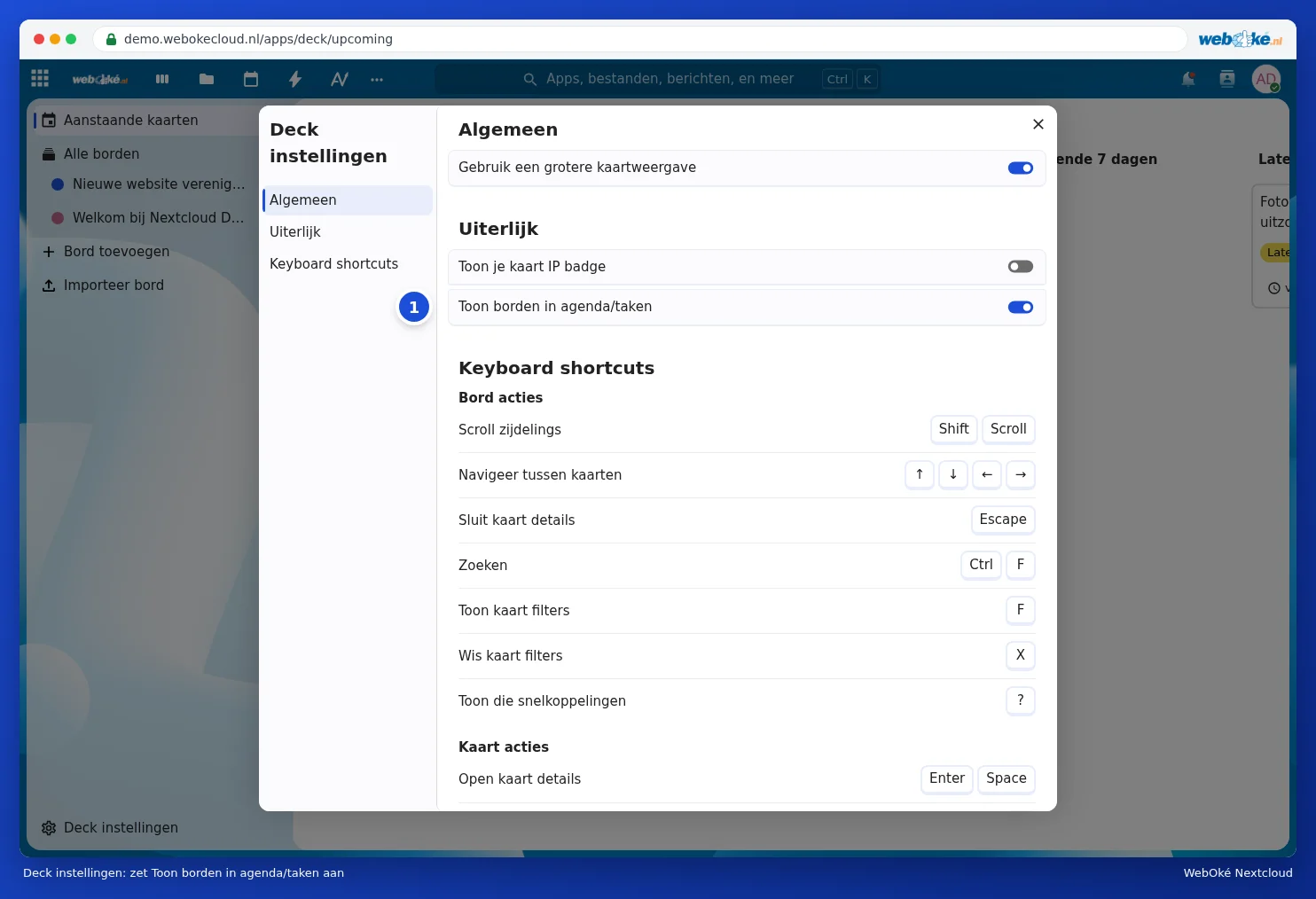
- Open Deck and click Deck settings at the bottom left.
- Switch on Show boards in calendar/tasks (1).
- Close the window.
Step 3: view the cards in Calendar and Tasks
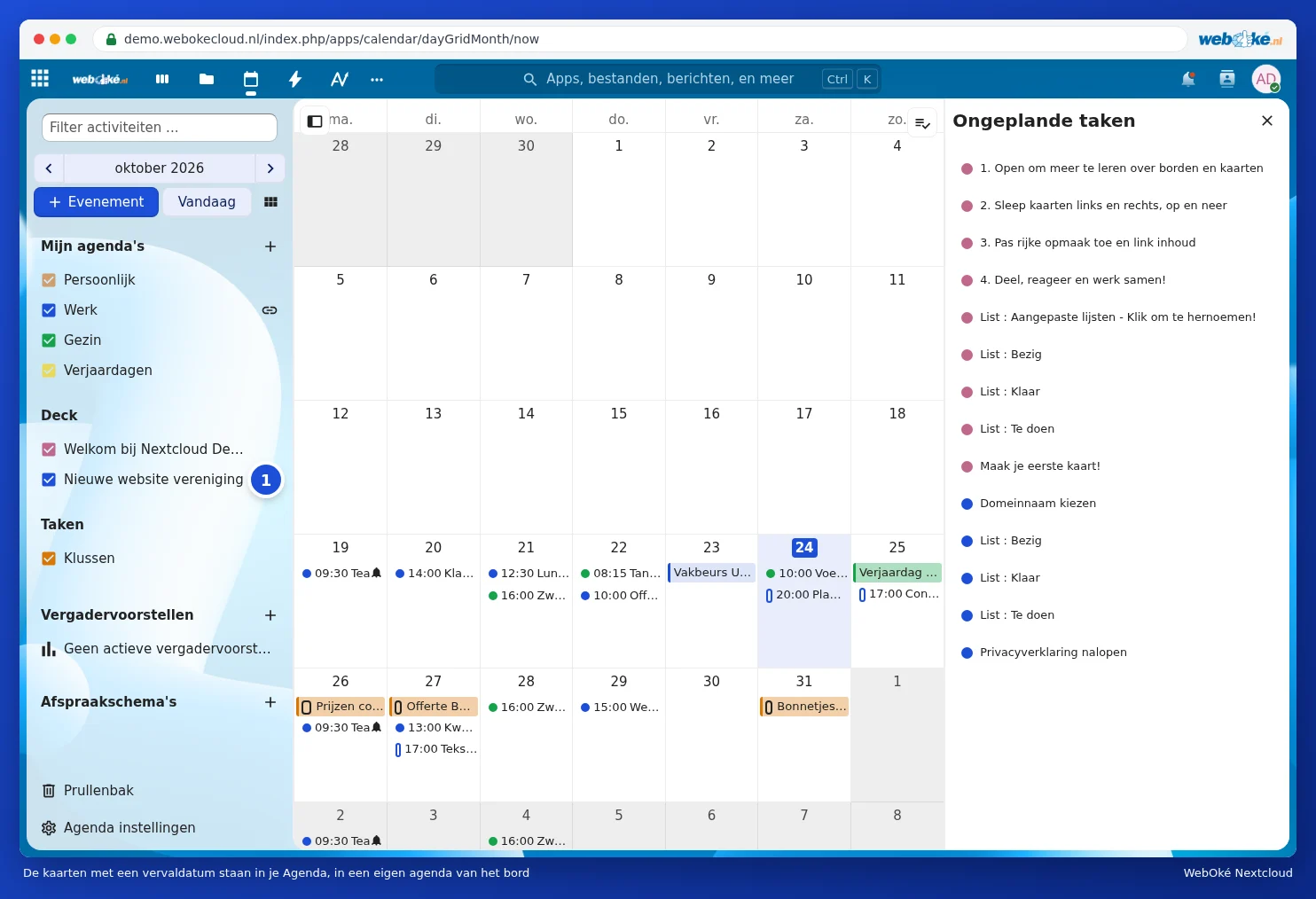
Open Calendar. You'll now see a calendar on the left with the name of your board (1). Cards with a due date appear on their deadline. Click a card in the calendar to open it.
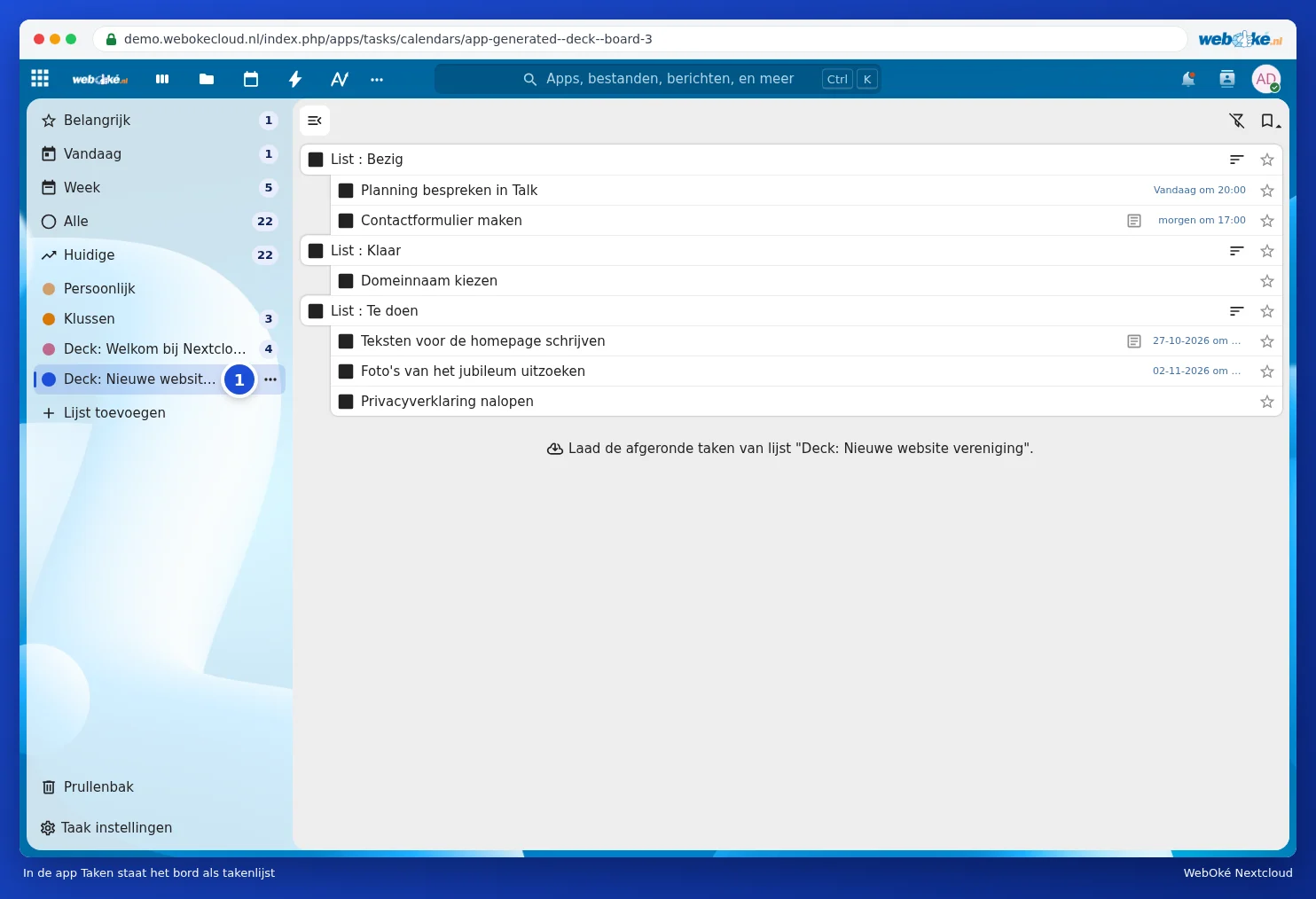
In the Tasks app, the board appears as a task list (1). This way, you see the cards alongside your other tasks.
Step 4: on your phone
If you already have your Nextcloud calendar on your phone (see Calendar and contacts on the iPhone and iPad and Calendar and contacts on Android with DAVx5), the board will appear there as an extra calendar or task list. If you don't see it, switch it on in your phone's calendar settings, or in DAVx5 under the list of calendars.
Good to know
- You move a card in Deck, not in the calendar. The calendar follows automatically.
- Anyone you share the board with can switch on the option themselves and will then see the same deadlines.
- Just want your deadlines at a glance? Use Upcoming cards in Deck or the block on your Dashboard. See Using the Dashboard and apps together.
- If you'd like a notification for a deadline, switch on Due date reminders in the board's menu.