
Chapter 1 · 1.3
A tour of the screen
Watch it in a short video
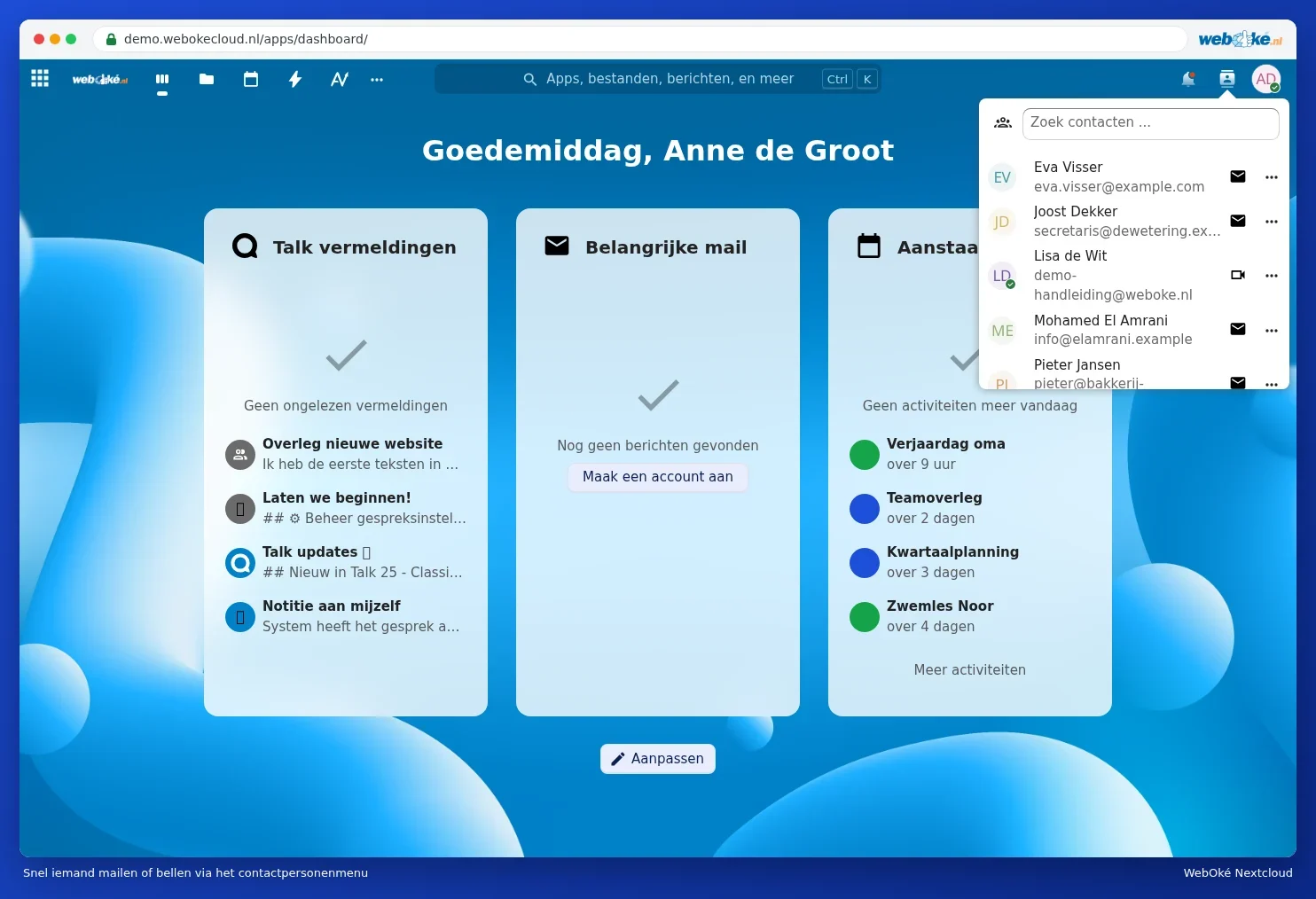
Every screen in your WebOké Nextcloud has the same blue bar at the top. Once you know this bar, you'll find your way around easily. Below, we'll go through it from left to right.

- The app icons. On the left of the bar are your most used apps, such as Dashboard, Files, Calendar, Activity and Analytics. Move your mouse over an icon to see its name. The line under an icon shows which app you're currently in. The WebOké logo on the left always takes you back to the start.
- More apps. Behind the three dots are the apps that don't fit in the bar.
- The search bar. Search your files, calendar, tasks, contacts and conversations all at once. You can also open it with the Ctrl + K keys.
- Alerts. The bell gets a red dot when there's something new: someone shared something with you, there's a reminder or a security alert.
- Contacts. Quickly look someone up and send an email or start a conversation.
- Your profile photo. Here you'll find your status, Settings and Log out.
- Customise. Dashboard only: choose which blocks (widgets) you see.
- The app menu. The button with nine squares on the far left opens a menu listing all your apps.
All your apps in one overview
At the far left of the bar is a button with nine squares. Click it and a menu slides open on the left, listing all your apps one below another, from Dashboard to Talk. Click an app to open it, or click elsewhere to close the menu again. There's also a search button (Search) at the top of that menu.

Searching
Click the search bar and type a few letters. You'll see results straight away, neatly grouped: files, appointments, tasks and more. Use the Type, Date and People buttons to narrow your search. Click a result to open it.

Alerts
Click the bell to see your alerts. Use the cross to remove an alert, and Dismiss all notifications to clear the whole list at once. You can set which alerts you receive and whether they also arrive by email. See Setting up notifications and emails about activity.

Contacts
The icon with the card opens a quick search list of your contacts and colleagues. Use the envelope to send an email straight away, and the camera icon to start a conversation in Talk (with a package that includes Office).
The profile menu
Click your profile photo or your initials in the top right. You'll then see:
- View profile: how others see your profile.
- Intros: short guided tours of Nextcloud, like the one from the welcome window on your first visit (Logging in for the first time).
- Set status (1): shows whether you're online, away or busy. See Setting your status: online, away or do not disturb.
- Appearance and accessibility: light or dark theme, background and font.
- Settings (2): your profile, language, security, alerts and more.
- Help & privacy: help and information about Nextcloud itself.
- Log out (3): sign out. Always do this on a computer that isn't your own.

Tip: Some settings and buttons are (still) in English, such as Profile & contact and Language & locale. This is because Nextcloud hasn't translated these texts yet. In this guide, we refer to them as you see them on your screen.