
Chapter 10 · 10.7
Talk on your phone and notifications
Available in packages with Office. Talk is included in your WebOké Nextcloud as soon as there's at least one Office Suite licence on your package. Then everyone in your package can use Talk, even users without their own licence. If you don't have Office, you won't see Talk in the menu. See Which apps are included in my package?.
With the Nextcloud Talk app, you can chat and call on the go too. You'll get a notification when someone sends you a message or calls you.
Installing the app
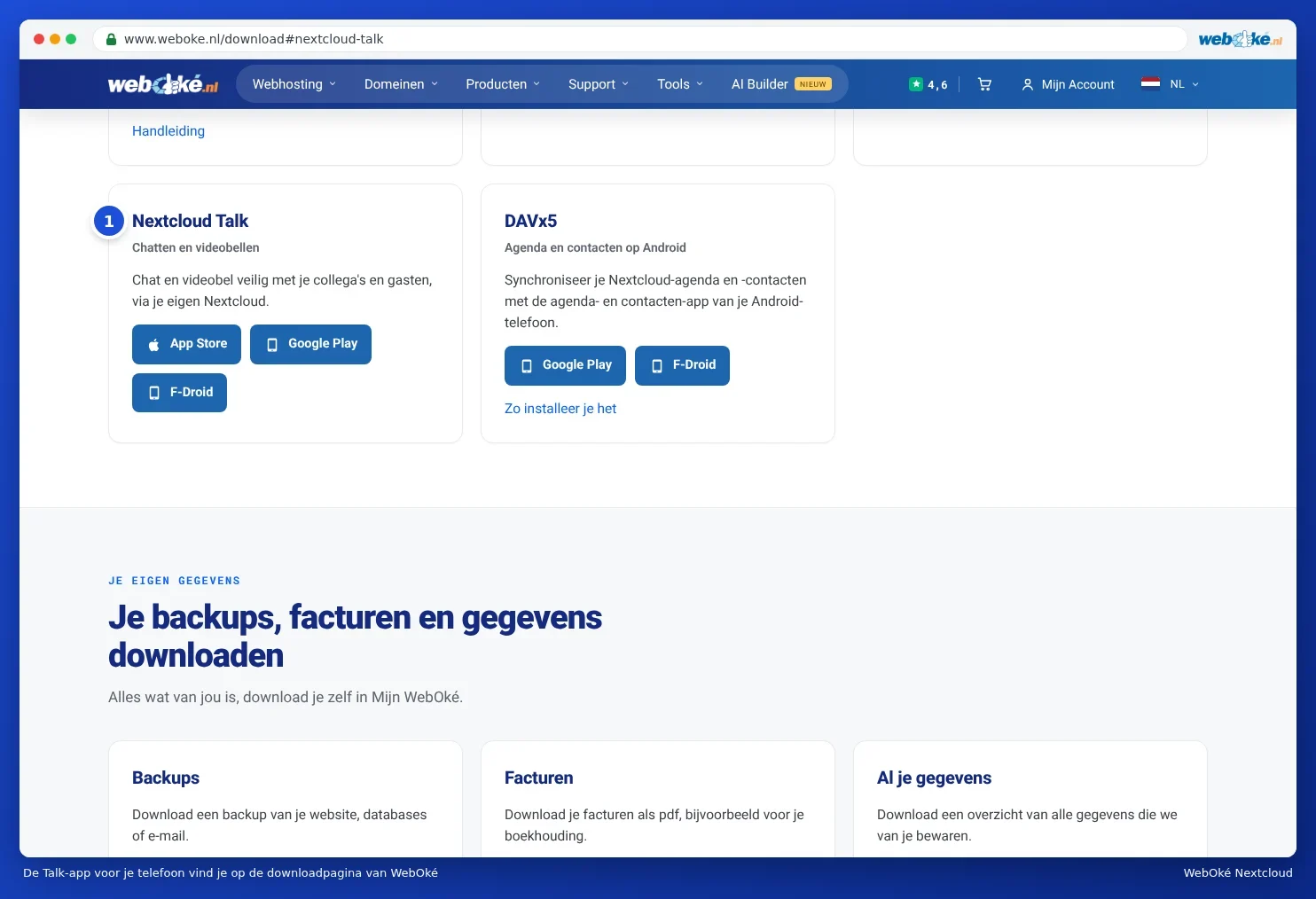
You'll find the app on the WebOké download page under Nextcloud Talk (1), with buttons for the App store, Google Play and F-Droid: www.weboke.nl/download. Or search for Nextcloud Talk in your phone's store. Always download it from the official store.
Logging in to the app
- Open the app and enter the address of your Nextcloud, for example yourname.webokecloud.nl.
- The app opens a login screen for your Nextcloud. Log in with your username and password and enter the code from the email or your authenticator app.
- Grant the app access. You don't need to create an app password; the app handles that itself.
- Allow notifications if the app asks for them.
If you already have the regular Nextcloud app on Android, the Talk app can use that account. Read more about apps on your phone in Which apps do you need on your phone and tablet? and Talk, Notes and Deck on your phone.
Setting up notifications per conversation
You decide for each conversation when you get a notification. Open the conversation, click the three dots, choose Conversation settings and go to Personal.
- All messages (1): a notification for every new message. Default in a one-to-one conversation.
- Only @-mentions (2): only when someone mentions you. Default in a group conversation.
- Off (3): no notifications from this conversation.
- Notify about calls in this conversation (4): your phone will ring when a call starts.

If you set a conversation to Important conversation, you'll still get notifications even if your status is set to Do not disturb. Sensitive conversation hides the content of messages in the list and in notifications, handy if others can see your screen. Read about setting your status in Setting your status: online, away or do not disturb.
No notifications on your phone?
- Check your phone's settings to see if notifications are turned on for Nextcloud Talk.
- On Android: turn off battery optimisation for the app (set battery to Unlimited). Otherwise Android stops the app running in the background.
- Check that the conversation isn't set to Off or Only @-mentions.
- If nothing helps, remove the account in the app and add it again.