
Chapter 5 · 5.8
Shared with you: overview, declining and re-sharing
Watch it in a short video
Everything others share with you, and everything you share, can be found under Shares in the Files app.
The Shares overview
In Files, click the arrow next to Shares on the left. You'll see the following, among other things:
- Shared with you: everything others have shared with you.
- Shared with others: what you share with people or teams.
- Shared by link: all your public links.
- File requests: your file requests (see Having files sent to you: file drop and file request).
- Deleted shares: shares you've removed and can still restore.
- Pending shares: shares you still need to accept, for example from someone on another Nextcloud.
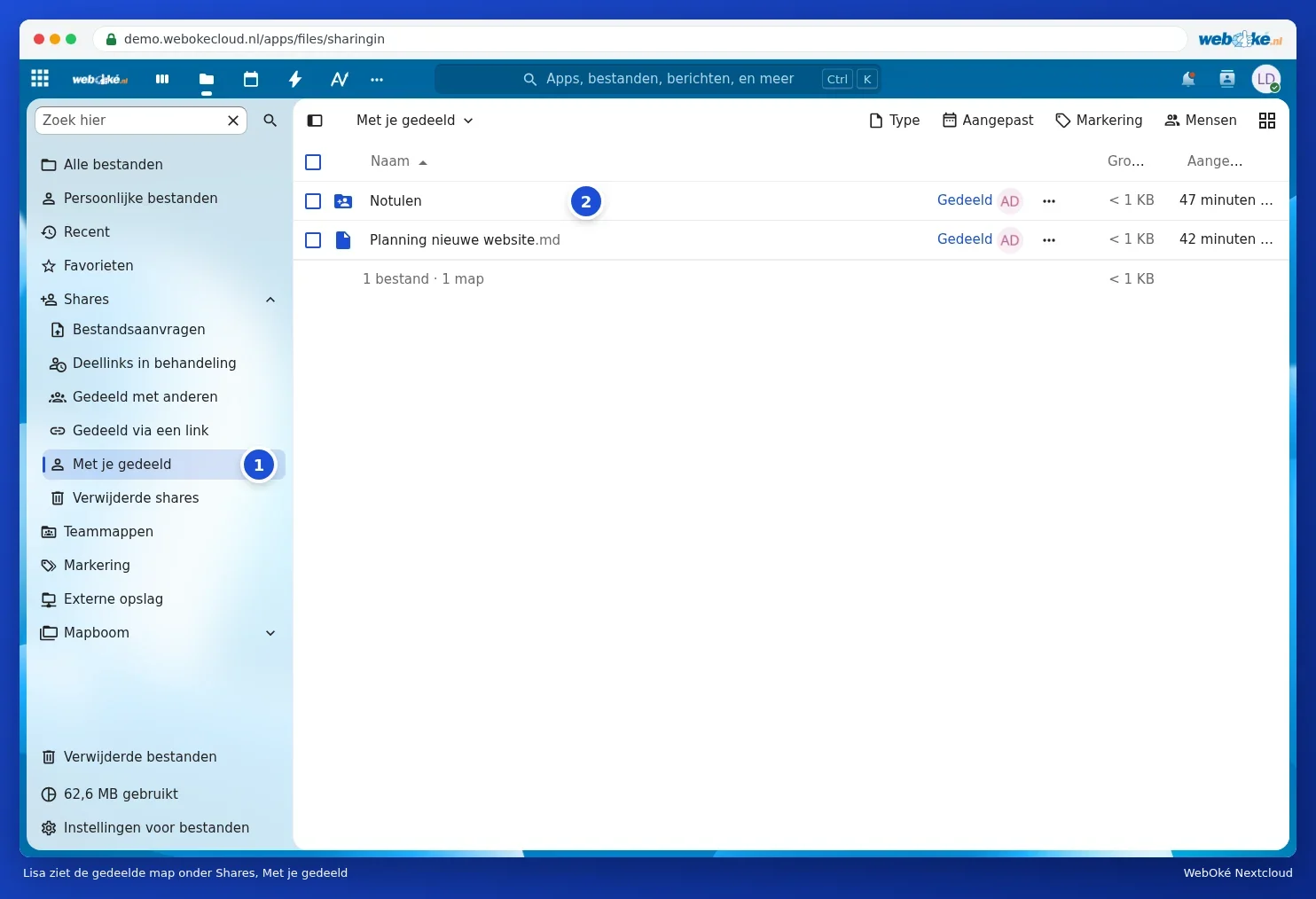
Here you see Lisa's screen, with whom Anne has shared the Minutes folder. The folder (2) appears under Shared with you (1) for Lisa. It also simply appears among her own folders under All files.
Declining or removing a share
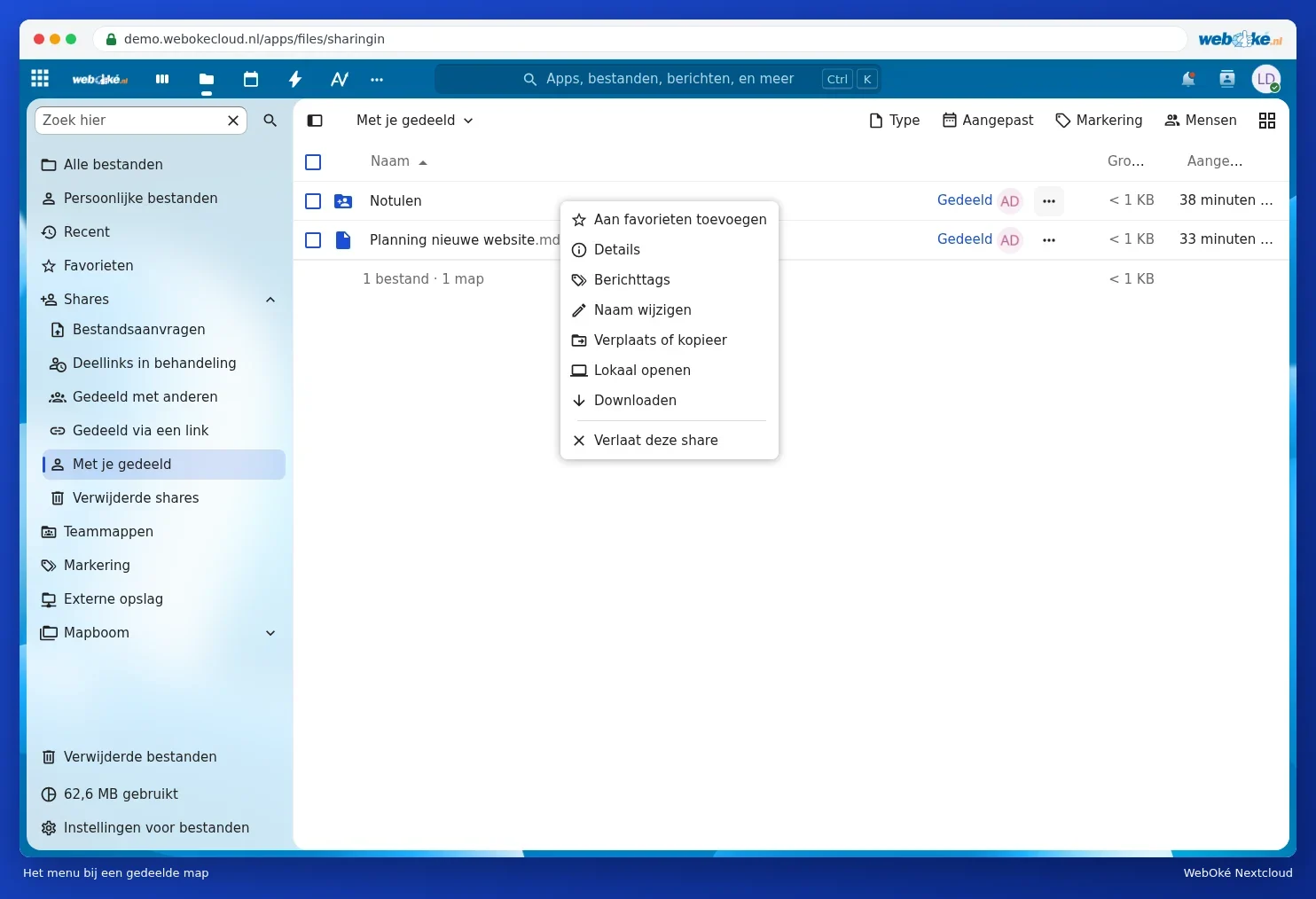
Don't want to see a shared file or folder any more? Right-click it and choose Leave this share. This only removes the share for yourself. The original stays with the owner. Changed your mind? Restore it under Deleted shares.
Re-sharing
If the owner has given you the right to re-share, you can share the file or folder with others yourself, via the Share tab. Without that right, you'll only see who it's shared with there.
Automatically accepting shares or placing them in one folder
Via your profile picture, Settings and Sharing, you can use Accept default shares from other accounts and groups to decide whether to automatically accept shares from other users, and which folder they're placed in (Set default folder for accepted shares). For example, choose a folder called "Shared", so your own folder structure doesn't get cluttered.