
Chapter 10 · 10.3
Video calling and meetings: camera, microphone, background and raising your hand
Watch it in a short video
Available in packages with Office. Talk is included in your WebOké Nextcloud as soon as your package has at least one Office Suite licence. Then everyone in your package can use Talk, even users without their own licence. If you don't have Office, you won't see Talk in the menu. See Which apps are included in my package?.
In every conversation, you can make calls, with or without video. All you need is a browser (Chrome, Edge, Firefox or Safari) or the Talk app on your phone. There's nothing to install.
Test your devices first
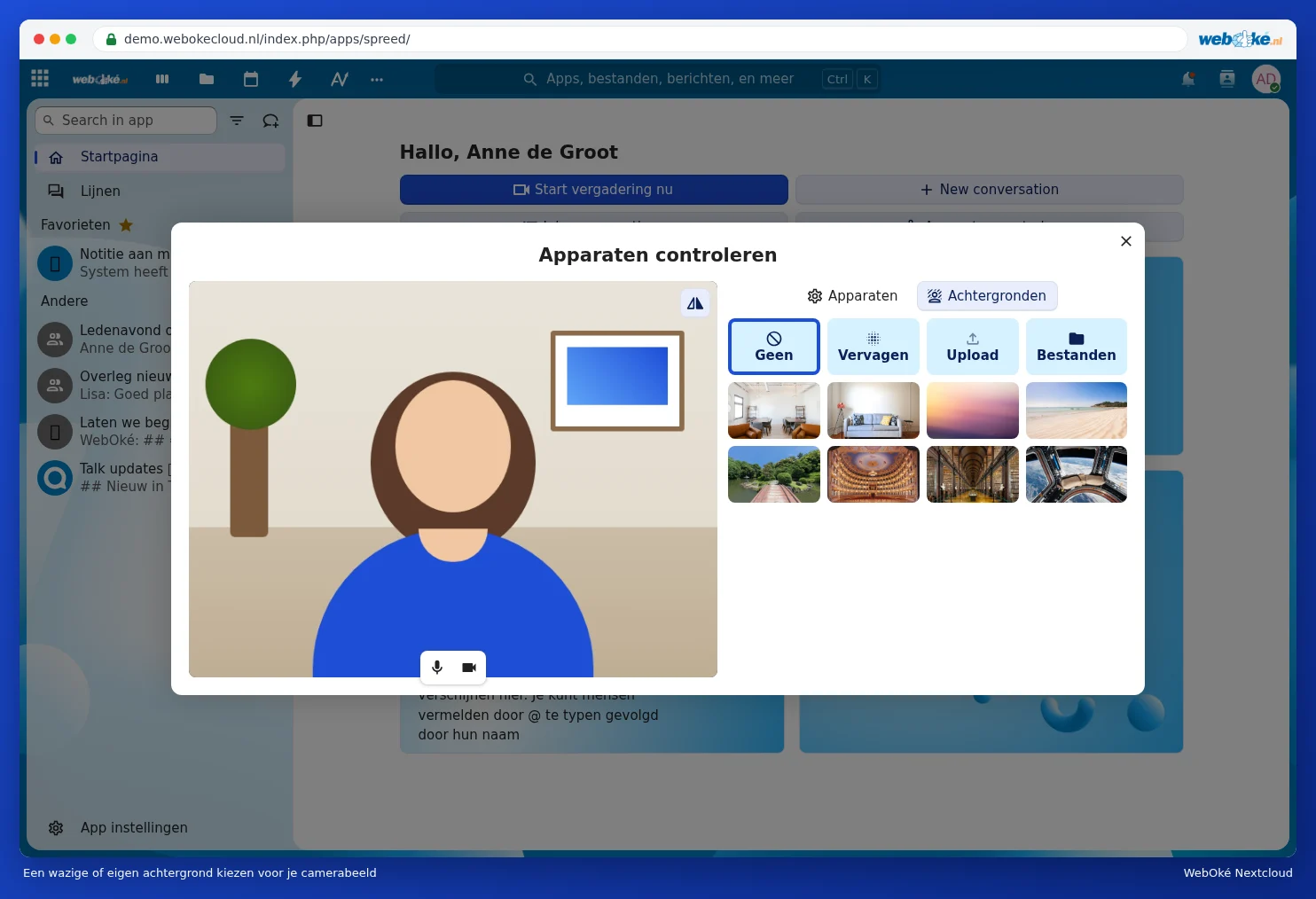
On the Home page of Talk, click Check devices. You'll see your own camera image and can choose which camera, microphone and speaker Talk uses. Click Test to hear whether the speaker works. The first time, your browser will ask whether Talk may use your camera and microphone: click Allow.

Under Backgrounds, you can blur your background with Blur, choose one of the default backgrounds, or upload your own photo with Upload or Files. That way, nobody sees your kitchen or your messy desk.
Starting or joining a call
- Open the conversation and click Start call in the top right. If a call is already in progress, the button is green and is called Join call.
- The Check devices window opens. You'll see your own camera image. Use the buttons below the image (1) to turn your microphone and camera on or off, so you don't appear on screen unexpectedly.
- Leave Notify all participants about this call (2) ticked if the others should receive a call notification.
- Click Start call (3).

Tip: do you want to call without everyone receiving a call notification? Click the arrow next to Start call and choose Start call silently. The participants will then only see in the chat that a call is in progress.
During the call

- Microphone on or off (1). Keyboard shortcut: M. Use the arrow next to it to choose a different microphone.
- Camera on or off (2). Keyboard shortcut: V.
- Background (3): blur your background or choose a different one.
- Screen sharing (4), see Sharing your screen.
- Reactions (5): send a thumbs up, applause or another reaction, without turning on your microphone.
- Leave call (6) to hang up. If you're the moderator, you can use the arrow next to it to choose End call for everyone.
- Behind the three dots (7), you'll find Mute others, Check devices, Set up breakout rooms, Download attendance list and Conversation settings, among other things.
Want to say something without interrupting anyone? Raise your hand with the keyboard shortcut R. A small hand will then appear next to your name, as shown above for Lisa. Press R again to lower your hand.

You can keep chatting during the call: the chat is in the sidebar on the right. In the bottom left, use the buttons to switch between full screen (keyboard shortcut F) and grid view, where everyone appears the same size on screen.
Scheduling a meeting
Create an appointment in Calendar and add the link to the Talk conversation under Location. These appointments appear on the Home page of Talk under Schedule meetings and behind the calendar icon at the top of the conversation. Find out how to create an appointment and invite people in Calendar: views, making appointments, repeating and reminders and Inviting people to an appointment.
Large groups and separate rooms
- In a large conversation, you won't see everyone on screen at once. Talk then mainly shows whoever is speaking in a larger view.
- Use Set up breakout rooms (via the three dots) to divide participants across separate meeting rooms, for example for working groups. Afterwards, you can bring everyone back together.
- Under Conversation settings, in Permissions, you decide whether participants can use their own microphone, camera and screen. Choose Restricted if only the moderators are allowed to speak, as in a presentation.
If calling isn't working, nobody can see you, or the call button is grey, see Camera or microphone not working, or the call button is greyed out.